
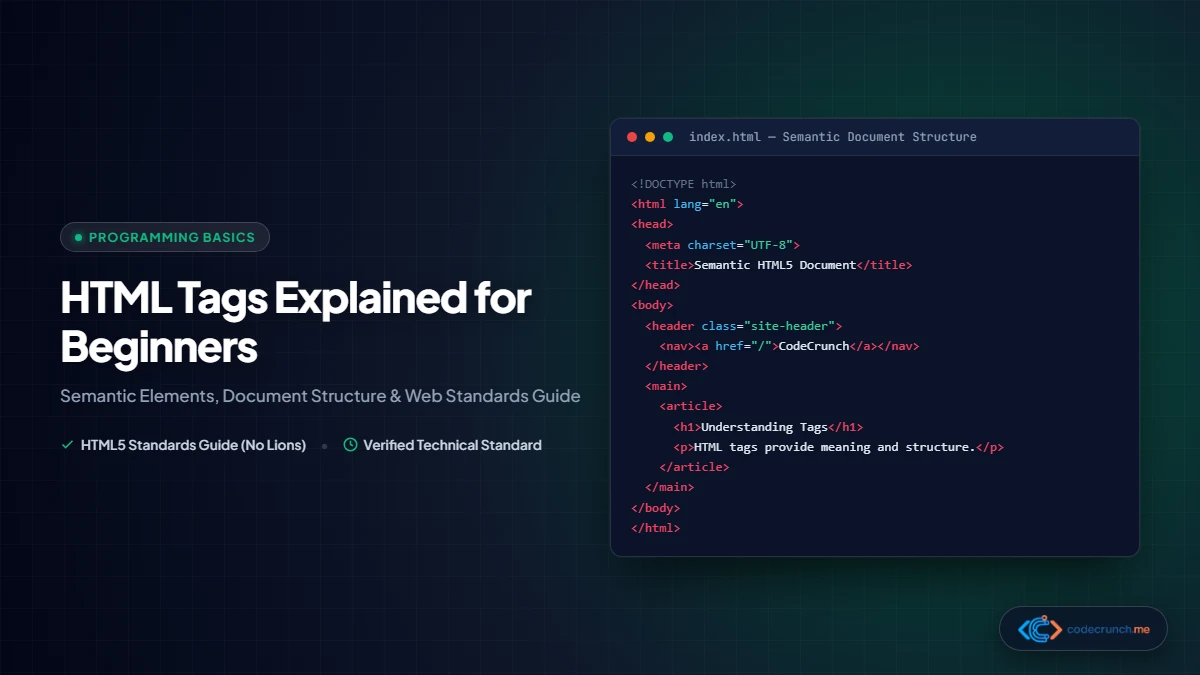
If you want to build websites, understand how internet pages are structured, or enter frontend engineering, mastering HTML tags for beginners is your essential starting point. HTML tags form the foundational skeleton of every single page on the web—from personal blogs to platforms like Wikipedia, GitHub, and YouTube.
In this comprehensive beginner guide, we break down what HTML tags are, how elements and attributes work, the standard HTML5 document boilerplate, essential text and container tags, semantic markup for SEO, forms, tables, and accessibility best practices in 2026.
Table of Contents
- 1. What Is HTML? The Language of the Web
- 2. Anatomy of an HTML Tag: Opening, Closing, and Void Elements
- 3. The Standard HTML5 Document Structure
- 4. Essential Text & Formatting Tags
- 5. Modern Semantic HTML5: Why divs Aren’t Enough
- 6. Links and Media: <a>, <img>, <figure>, and <picture>
- 7. Interactive Forms: <form>, <input>, <label>, and <button>
- 8. Structured Data Tables: <table>, <thead>, and <tbody>
- 9. Essential HTML Attributes Cheat Sheet
- 10. Frequently Asked Questions (FAQ)
1. What Is HTML? The Language of the Web
HTML stands for HyperText Markup Language. Maintained by the World Wide Web Consortium (W3C) and WHATWG, it is not a programming language like JavaScript or Python (it does not perform calculations or conditional execution). Instead, it is a declarative markup language that annotates text and assets so web browsers understand how to construct the Document Object Model (DOM).
To understand the complete journey of how browsers fetch and parse HTML over the network, read our deep-dive on how websites work step-by-step.
2. Anatomy of an HTML Tag: Opening, Closing, and Void Elements
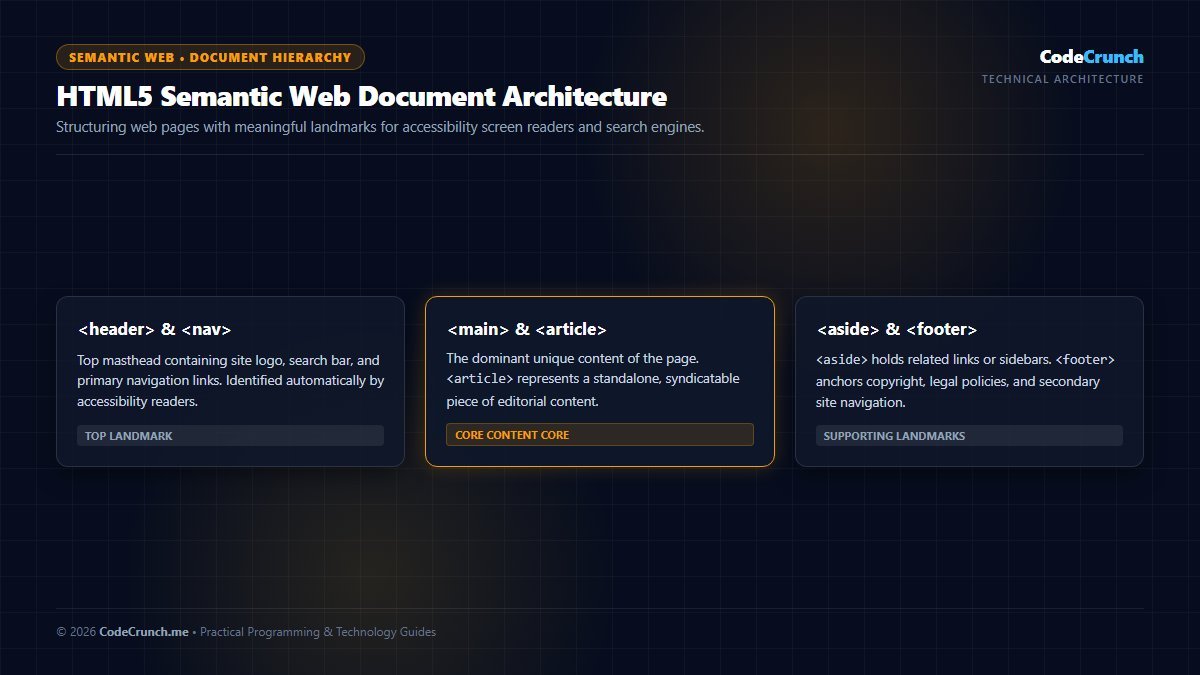
Element Syntax Breakdown: The diagram deconstructs an HTML element into its constituent parts: the opening tag, element name, attribute keys and values, the wrapped text content, and the closing tag. Self-closing (void) elements such as <img>, <input>, and <meta> do not have closing tags.
Most HTML elements consist of three components: an opening tag, the inner content, and a closing tag:
<p class="lead">This is an HTML element.</p>
└───┬──────────┘ └──────────┬───────────┘ └───┬──┘
Opening Tag Content Closing Tag- Opening Tag: Starts with
<tagname>and can contain attributes that provide configuration parameters. - Content: The raw text or child HTML elements nestled inside the container.
- Closing Tag: Ends with
</tagname>(with a forward slash), indicating to the browser engine where the element ends.
Void (Self-Closing) Elements
Some elements cannot hold child content or closing tags. These are called void elements:
<img src="..." alt="...">— Embeds an image.<input type="text">— A user input field.<br>— A hard line break.<hr>— A thematic divider rule.<meta>and<link>— Document metadata and stylesheet links.
3. The Standard HTML5 Document Structure
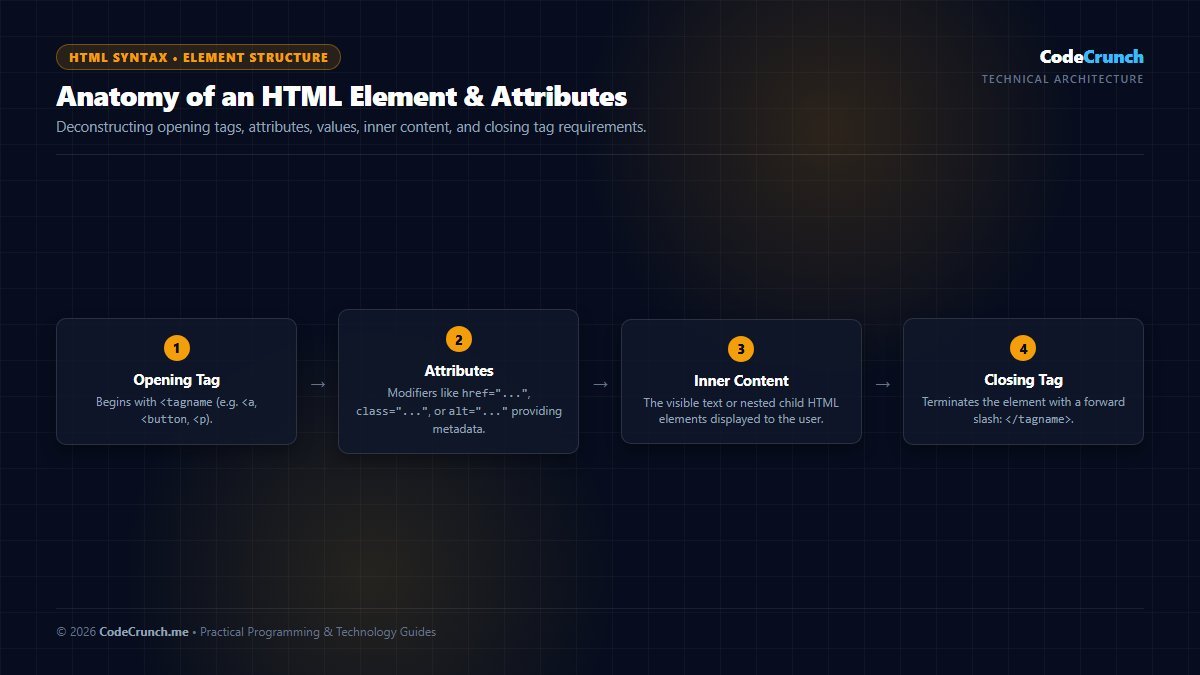
Document Hierarchy: Modern HTML5 document architecture establishes clear semantic boundaries. Using semantic containers like <header>, <main>, <article>, and <footer> allows assistive screen readers and search engine crawlers to parse page content logically.
Semantic Landmarks vs Generic Divs: Accessibility and SEO Impact
In early web development, layouts were built almost exclusively with unsemantic <div> and <span> tags. While visually identical when styled with CSS, a page composed solely of divs lacks structural meaning. Here is why semantic HTML5 elements are mandatory in modern web engineering:
| Semantic Element | Document Role | Screen Reader / SEO Benefit |
|---|---|---|
<header> | Introductory content, site branding, primary navigation | Exposes top-level navigation landmark to assistive tools |
<nav> | Major navigation link collections | Allows blind users to skip directly to site menu |
<main> | Unique central content of the document (1 per page) | Signals core page content for search indexing algorithms |
<article> | Self-contained, independently distributable content | Allows RSS readers and syndicators to parse individual articles |
<aside> | Indirectly related content, sidebars, callout boxes | Treated as secondary content by indexing bots |
<footer> | Copyright, legal disclosures, author information | Footer landmark for fast navigation to policy pages |
For complete element definitions and living standards, refer to the official WHATWG HTML Living Standard and the comprehensive MDN HTML Elements Reference.
Every valid HTML5 webpage begins with an industry-standard boilerplate. Here is what every production page must contain:
<!DOCTYPE html>
<html lang="en">
  <head>
    <meta charset="UTF-8">
    <meta name="viewport" content="width=device-width, initial-scale=1.0">
    <title>Page Title — CodeCrunch</title>
    <link rel="stylesheet" href="styles.css">
  </head>
  <body>
    <header>
      <h1>Welcome to CodeCrunch</h1>
    </header>
    <main>
      <p>This is where the visible content lives.</p>
    </main>
    <footer>
      <p>© 2026 CodeCrunch</p>
    </footer>
  </body>
</html>
<!DOCTYPE html>: Tells modern browsers to render in standards-compliant mode rather than legacy “quirks” mode.<html lang="en">: The root wrapper element with language metadata for translation engines and screen readers.<head>: Holds non-visual technical metadata, character sets, viewport scaling, and external assets.<body>: Contains all visual, interactive content rendered in the browser window.
4. Essential Text & Formatting Tags
Text tags give meaning and visual rhythm to written content:
Headings (<h1> to <h6>)
Headings establish the hierarchical outline of your article. There should only be one single <h1> per page representing the primary topic, followed by logical <h2> sections and <h3> subsections.
Paragraphs and Inline Semantics
<p>: Body paragraph text.<strong>: Indicates strong importance or urgency (rendered in bold by default).<em>: Indicates verbal emphasis (rendered in italics by default).<blockquote>: Quotations from external authors or authoritative sources.<code>and<pre>: Inline computer syntax and preformatted multi-line code blocks.
5. Modern Semantic HTML5: Why divs Aren’t Enough
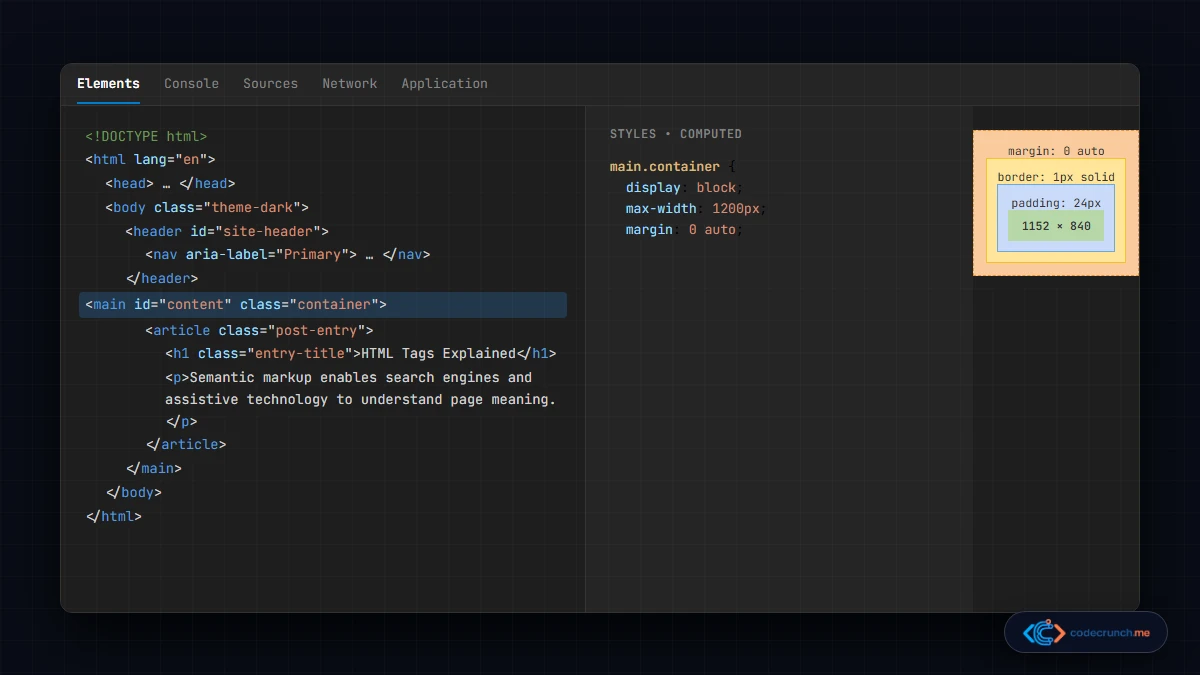
In older websites, developers wrapped everything in generic <div class="header"> or <div class="article"> tags. HTML5 introduced rich semantic elements that tell search engines, browsers, and screen readers exactly what each content block represents:
| Semantic Tag | Structural Purpose | SEO & Accessibility Benefit |
|---|---|---|
<header> | Introductory content, site logos, and primary mastheads. | Helps screen readers identify banner landmarks. |
<nav> | Primary, secondary, or breadcrumb navigation links. | Allows assistive tech to jump directly to site navigation. |
<main> | The central, unique content of the page (strictly 1 per page). | Enables “skip to content” shortcuts for keyboard users. |
<article> | Self-contained content suitable for syndication (blog posts, news). | Search engine bots index articles as standalone editorial entities. |
<aside> | Tangentially related sidebars, related links, or callout cards. | Distinguishes supplementary context from the core article text. |
<footer> | Copyright notices, legal disclaimers, and contact details. | Identifies site ownership and regulatory links. |
6. Links and Media: <a>, <img>, <figure>, and <picture>
The web is hypermedia. Knowing how to link documents and embed optimized graphics is vital:
The Anchor Tag (<a>)
The anchor tag connects web pages together. When pointing to external third-party sites, always use rel="noopener noreferrer" for performance and security:
<a href="https://www.codecrunch.me/css-selectors-made-simple-beginner-guide/">CSS Selectors Guide</a>
<a href="https://developer.mozilla.org/" target="_blank" rel="noopener noreferrer">MDN Documentation</a>
Modern Responsive Media with <picture>
While <img> remains standard, modern web development frequently wraps images inside <picture> and <figure> to deliver modern formats like WebP or AVIF with fallback support:
<figure>
  <picture>
    <source srcset="laptop.avif" type="image/avif">
    <source srcset="laptop.webp" type="image/webp">
    <img src="laptop.jpg" alt="Developer programming on modern laptop" loading="lazy" width="800" height="450">
  </picture>
  <figcaption>Fig 1: A typical software developer workstation.</figcaption>
</figure>
7. Interactive Forms: <form>, <input>, <label>, and <button>
Forms are how users submit data to servers (login, contact forms, search queries). Accessibility demands that every input have a corresponding <label>:
<form action="/submit" method="POST">
  <div class="form-group">
    <label for="user-email">Email Address:</label>
    <input type="email" id="user-email" name="email" required placeholder="name@example.com">
  </div>
  <button type="submit" class="btn">Subscribe Now</button>
</form>
When the user clicks “Subscribe Now”, the browser bundles the input values into an HTTP request. To learn how servers process this form submission, explore our guide on backend basics explained simply.
8. Structured Data Tables: <table>, <thead>, and <tbody>
Tables present structured data across rows and columns. Never use tables for layout styling—use CSS Grid or Flexbox instead. Tables should only display actual tabular datasets:
<table>
<thead>
<tr>
<th>Tag Name</th>
<th>Category</th>
<th>Display Default</th>
</tr>
</thead>
<tbody>
<tr>
<td><code><h1></code></td>
<td>Heading</td>
<td>Block</td>
</tr>
<tr>
<td><code><a></code></td>
<td>Link</td>
<td>Inline</td>
</tr>
</tbody>
</table>9. Essential HTML Attributes Cheat Sheet
Attributes configure and extend elements. Here are the most essential global and element-specific attributes:
class: Reusable identifier for CSS styling. Learn how to target classes in our guide on CSS selectors made simple.id: Unique document identifier used for anchor navigation and JavaScript targeting.alt: Descriptive alternative text for images (mandatory for screen readers).href: Destination URL for links.target="_blank": Instructs the browser to open the link in a fresh tab.loading="lazy": Defers offscreen image loading until the user scrolls near them, dramatically improving initial page load speed.
Now that you understand HTML tags, put your skills into action by constructing a complete project in our tutorial on how to build a simple website using HTML and CSS, or review the comprehensive career roadmap in our guide to frontend developer skills for beginners. For the complete W3C element specification, reference the MDN Web Docs HTML Element Directory.
10. Frequently Asked Questions (FAQ)
What is the difference between an HTML tag and an HTML element?
An HTML tag is the opening or closing syntax marker in angle brackets (like <p> or </p>). An HTML element refers to the entire unit: the opening tag, the inner content, and the closing tag together.
Do HTML tags care about uppercase or lowercase?
HTML is technically case-insensitive (e.g., <DIV> works), but official W3C web standards and modern style guides strictly mandate lowercase tags (<div>) for consistency and clean readability.
Can I learn HTML for free?
Yes. HTML is open-source and freely accessible. Explore our curated list of zero-cost tutorials and developer sandboxes in our guide on how to start coding at home for free.