
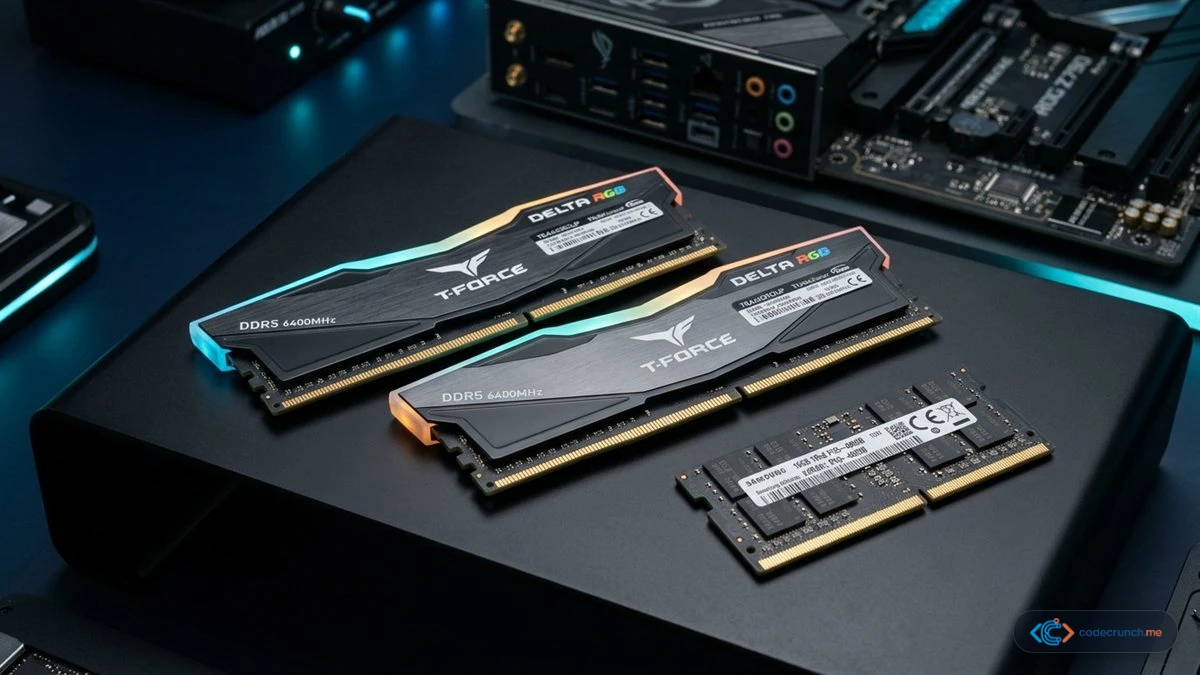
Random Access Memory (RAM) remains one of the single most decisive hardware specifications dictating whether your computer runs smoothly under demanding workloads or chokes under multi-tasking pressure. However, memory sizing rules have shifted dramatically. Between operating system background requirements, browser memory footprints, and the rise of memory-intensive development environments, recommendations from just a few years ago are dangerously outdated.
Whether you are configuring a new custom desktop, shopping for a notebook, or deciding whether your existing system warrants an upgrade, this comprehensive guide cuts through marketing jargon to give you exact, realistic memory recommendations for every budget and use case in 2026.
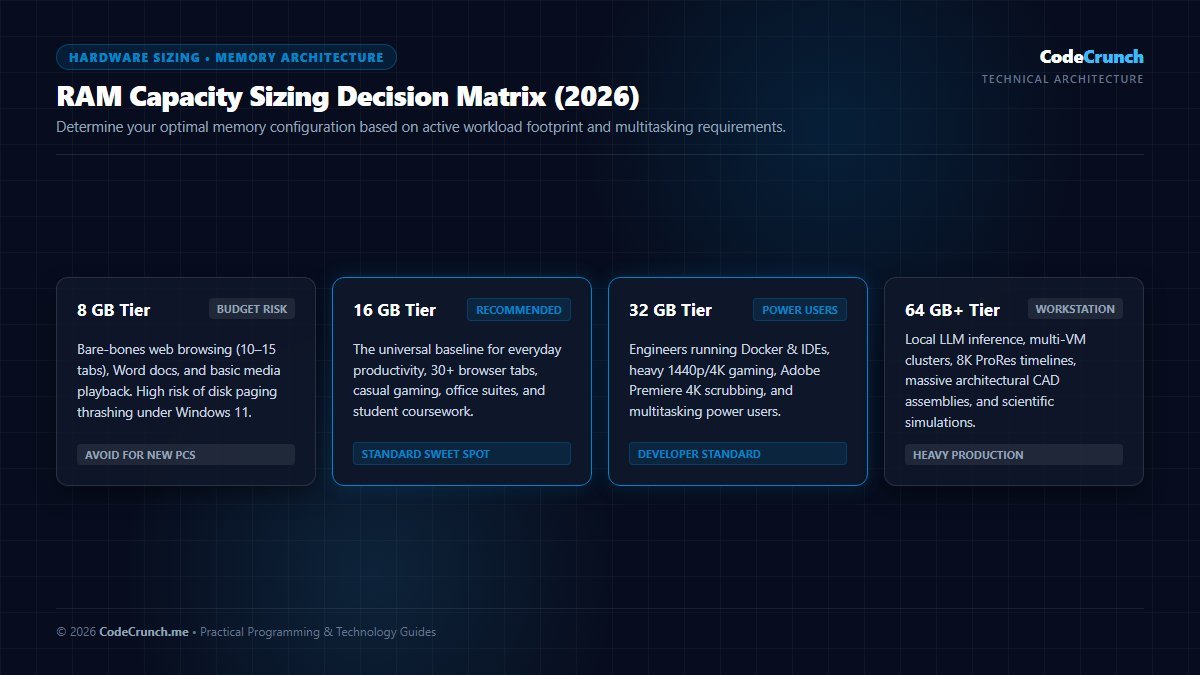
- 8 GB: Absolute minimum for bare-bones web browsing and basic office documents. Avoid when buying new hardware.
- 16 GB: The universal sweet spot for everyday multitasking, general office work, college studies, and mainstream 1080p gaming.
- 32 GB: The recommended standard for software developers, content creators, modern AAA gamers, and heavy multitaskers.
- 64 GB+: Specialized territory for local machine learning models, virtual machine clusters, 4K/8K RAW video production, and heavy 3D rendering.
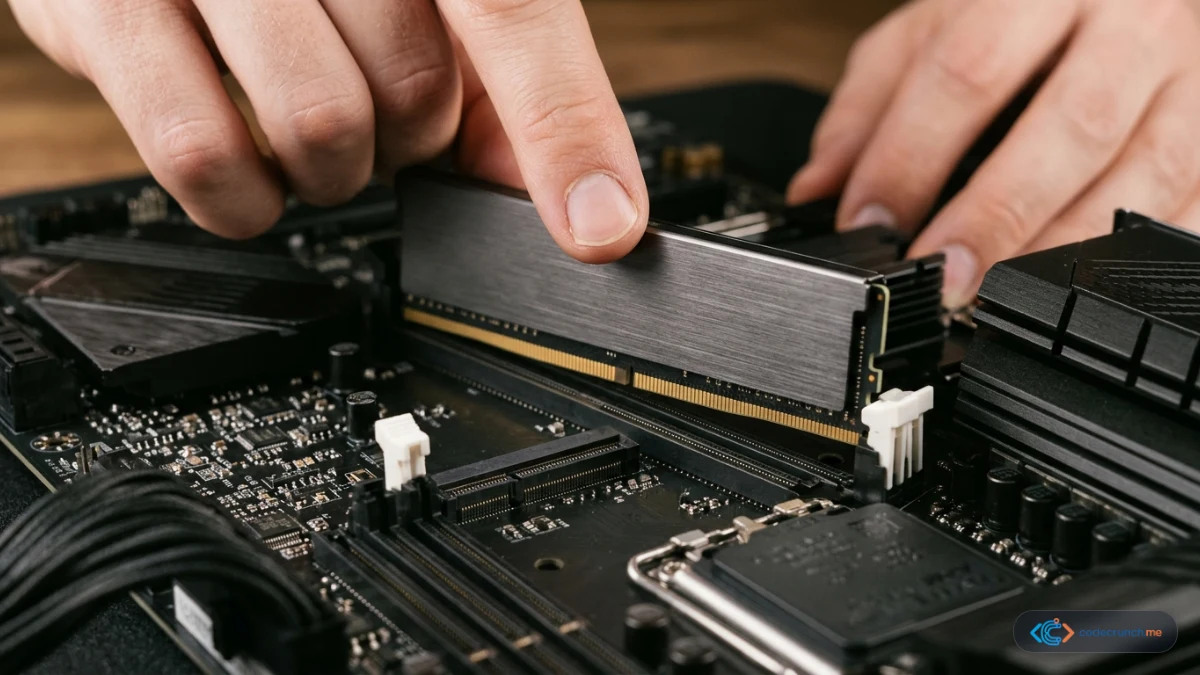
2026 Quick Reference RAM Matrix
Architectural Insight: The decision tree above illustrates how contemporary operating systems handle memory allocation. When physical RAM is exhausted, Windows and macOS activate swap memory on storage drives. Even with ultra-fast NVMe storage, virtual memory paging introduces nanosecond-to-microsecond latency spikes that manifest as application micro-stutters and sluggish browser tab switching.
Use this reference table to immediately pinpoint the ideal RAM capacity based on your primary workflow, device type, and expected upgrade lifespan:
| RAM Capacity | Best Suited For | Typical Workloads & Applications | 2026 Status & Longevity |
|---|---|---|---|
| 8 GB | Budget users, basic home office, cloud-first schooling | 10–15 browser tabs, Microsoft Word, basic Zoom calls, email clients | Obsolescence Risk — Easily exhausted by modern Windows 11 background processes. |
| 16 GB | Mainstream users, students, remote workers, casual gamers | 30+ browser tabs, spreadsheets, streaming, Figma, Photoshop, 1080p gaming | Recommended Baseline — Safe and responsive for 90% of everyday computing. |
| 32 GB | Developers, engineers, creative professionals, AAA gamers | Docker, VS Code, IntelliJ, local databases, Premiere Pro, After Effects, 1440p/4K gaming | Optimal Sweet Spot — Future-proof investment providing frictionless headroom. |
| 64 GB | Power engineers, VFX artists, data scientists, audio composers | Local LLMs, multi-container Docker swarms, virtualization, 8K video timelines, massive CAD assemblies | Workstation Class — Eliminates SSD paging thrashing in heavy production environments. |
| 128 GB+ | Enterprise servers, complex simulation, enterprise data modeling | Heavy scientific computing, multi-tenant Hyper-V/ESXi hosts, uncompressed video playback | Specialized Niche — Unnecessary for consumer or mainstream developer workflows. |
How Modern Operating Systems and Apps Consume Memory
To understand why memory demands continue to climb, it helps to examine how contemporary operating systems manage memory architecture. RAM is ultra-fast temporary storage where your CPU keeps the active working set of code and assets. When your available physical RAM is depleted, the operating system is forced to swap pages out to the storage drive via the Windows Pagefile or macOS Swap.
Even though modern NVMe solid-state drives deliver impressive sequential speeds, random 4K access latency on an NVMe SSD is still thousands of times slower than native DDR4 or DDR5 DRAM. If you are comparing drive speeds, our detailed breakdown on SSD vs HDD vs NVMe speed comparison illustrates this latency disparity in detail. When your system continuously pages memory to disk, the result is classic micro-stutter, audio dropouts, and lagging app switches.
1. Windows 11 Base Memory Footprint
A fresh, pristine installation of Windows 11 consumes approximately 3.8 GB to 4.5 GB of RAM immediately upon boot. This memory accommodates essential kernel operations, the Desktop Window Manager (DWM), Windows Defender real-time telemetry, and critical system services. On an 8 GB machine, that leaves only 3.5 GB of usable headroom before running a single application.
2. The Chromium Multi-Process Sandbox
Modern web browsers—including Google Chrome, Microsoft Edge, and Brave—utilize multi-process architectures to isolate each open tab, extension, and rendering process into a discrete sandbox. While this sandbox architecture delivers unmatched stability and security, each modern interactive web application (such as Notion, Gmail, Google Sheets, or Slack) consumes between 150 MB and 800 MB of RAM independently. Opening 25 tabs alongside a couple of browser extensions routinely demands 4 GB to 6 GB of dedicated memory.
3. Electron Desktop Applications
Many ubiquitous productivity and communication tools—including VS Code, Slack, Discord, Microsoft Teams, and Spotify—are built on the Electron framework. In essence, each Electron app packages a bundled Chromium runtime and Node.js instance. Running three or four Electron apps concurrently in the background easily commands an additional 2 GB to 4 GB of physical memory.
Deep Dive: Detailed Capacity Recommendations by Workflow
8 GB RAM: The Endangered Species
In 2026, 8 GB of RAM should be viewed strictly as a budget survival tier rather than a recommendation. While an 8 GB configuration can still manage basic tasks like composing emails, typing essays in Microsoft Word, and streaming YouTube videos, it lacks multitasking resilience.
If you have an 8 GB machine and notice your computer freezing whenever you run multiple programs, read our diagnostic walkthrough on why is my PC so slow and how to fix it to identify memory bottlenecks. If you are purchasing a brand-new computer today, we strongly advise avoiding non-upgradeable 8 GB models.
16 GB RAM: The Reliable Gold Standard
For the vast majority of consumers, college students, office professionals, and mainstream gamers, 16 GB represents the ideal intersection of price, utility, and longevity. With 16 GB installed:
- You can leave 30+ browser tabs open without tabs discarding their memory state.
- You can run Spotify, Slack, and Zoom alongside heavy office suites without system hesitation.
- You can comfortably play modern PC games at 1080p or 1440p resolutions without running out of system memory.
- You have enough headroom for entry-level programming in Python, web development, and light image manipulation in Photoshop or Canva.
If you are shopping for a study laptop, check out our curated guide on the best budget laptops for programming students, where 16 GB is our baseline recommendation.
32 GB RAM: The Developer and Creator Sweet Spot
Over the last two years, 32 GB has transitioned from an enthusiast luxury to the practical standard for software engineers, digital media creators, and modern gamers. Here is why 32 GB is increasingly essential:
- Software Engineering & Containers: Running Docker Desktop alongside WSL2 (Windows Subsystem for Linux), a full-featured IDE (like JetBrains IntelliJ or VS Code), local Redis or Postgres databases, and a local dev server will effortlessly consume 18 GB to 24 GB of RAM.
- Modern AAA Gaming: Modern titles like Hogwarts Legacy, Cyberpunk 2077, Flight Simulator, and modded titles can consume upwards of 18 GB to 22 GB of system RAM when paired with background streaming, voice chat, and recording utilities.
- Video & Motion Graphics: Editing 4K 10-bit H.264/H.265 footage in Adobe Premiere Pro or DaVinci Resolve requires substantial RAM for smooth timeline scrubbing and caching rendered frames.
64 GB+ RAM: Specialized Professional Power
Investing in 64 GB or 128 GB makes financial sense if your daily livelihood depends on specialized technical computing:
- Running local Large Language Models (LLMs) and fine-tuning datasets on CPU/system memory.
- Hosting multiple simultaneous virtual machines (VMware ESXi, Proxmox, or Hyper-V) with allocated hardware cores.
- Heavy 3D modeling and architectural CAD rendering in Blender, Maya, or Autodesk Revit.
- Complex orchestral music composition utilizing hundreds of gigabytes of uncompressed VST sample libraries.
DDR4 vs DDR5: Does Generation Matter More Than Size?
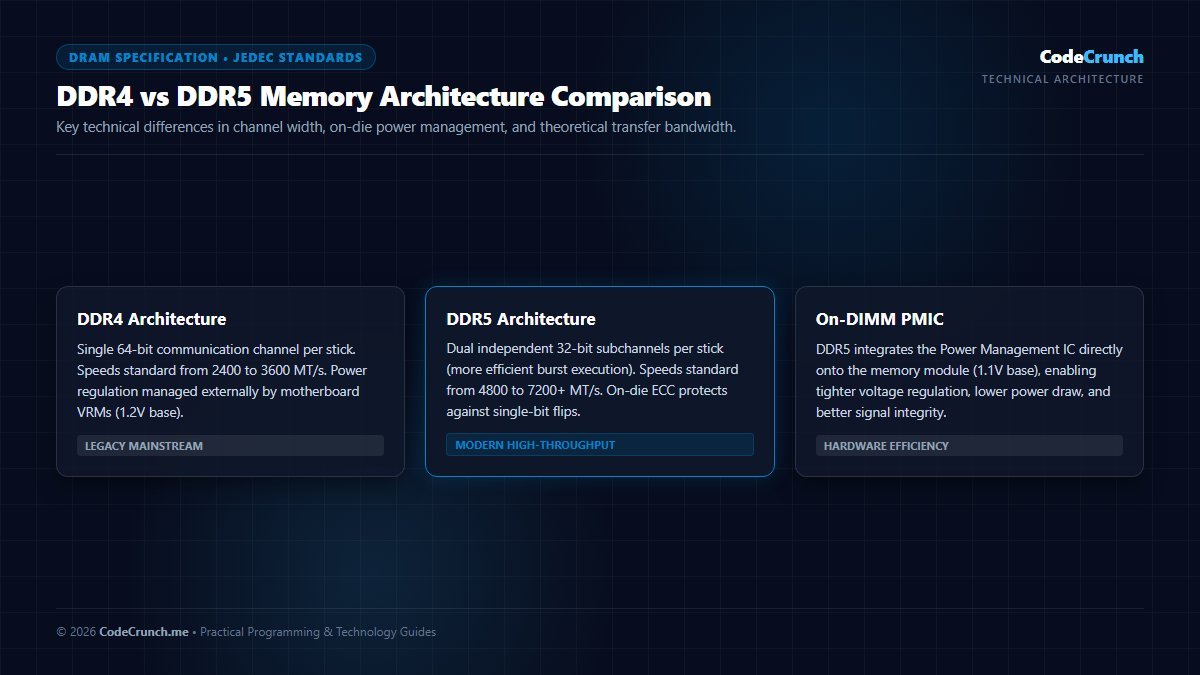
Memory Bus Evolution: As shown in the architectural comparison, DDR5 re-engineers the memory bus from a single 64-bit channel to dual independent 32-bit subchannels per DIMM. For standardized reference specifications and timing parameters, consult the official JEDEC DDR5 (JESD79-5C) Standard and Microsoft Learn Memory Architecture guidelines.
When upgrading or configuring a system, users frequently ask whether faster memory speed trumps raw capacity. The fundamental rule of memory configuration is unequivocal: Capacity always beats speed.
A system with 32 GB of modest DDR4-3200 memory will vastly outperform a system with 16 GB of ultra-fast DDR5-6000 memory the instant your workload exceeds 16 GB. Once you run out of physical RAM and hit disk swapping, even the fastest DDR5 memory cannot save you from crippling latency.
| Specification | DDR4 (Mainstream Standard) | DDR5 (Modern Standard) |
|---|---|---|
| Standard Speed Range | 2400 MT/s to 3600 MT/s | 4800 MT/s to 7200+ MT/s |
| Channel Architecture | Single 64-bit channel per stick | Dual 32-bit subchannels per stick |
| Power Management | Handled by motherboard VRMs | On-DIMM Power Management IC (PMIC) |
| Error Correction | ECC reserved for server modules | On-die ECC standard for bit-flip protection |
| Ideal Sweet Spot | DDR4-3200 CL16 | DDR5-6000 CL30 |
For modern Intel 13th/14th Gen Core and AMD Ryzen 7000/9000 platforms, DDR5 is the native standard, offering roughly double the theoretical memory bandwidth of DDR4. However, if you are working within a strict budget on an older platform, high-capacity DDR4 remains remarkably cost-effective.
The Critical Importance of Dual-Channel Memory
One of the most frequent hardware oversights is running memory in single-channel mode. Memory channels refer to the physical communication buses between the CPU memory controller and the RAM slots on the motherboard.
When you install two identical sticks (for example, two 8 GB sticks for 16 GB total) in the proper motherboard slots (typically slots A2 and B2), memory bandwidth effectively doubles from a 64-bit bus to a 128-bit bus. Running a single 16 GB stick in single-channel mode can cripple integrated graphics performance by up to 40% and cause noticeable 1% low frame-rate drops in gaming.
Soldered vs Modular RAM: The Laptop Buyer’s Trap
When shopping for a laptop, checking whether the RAM is user-upgradeable is paramount. Before making a buying decision, review our comprehensive laptop buying guide for students and professionals to avoid irreversible hardware mistakes.
Many contemporary thin-and-light laptops, ultrabooks, and all Apple Silicon MacBooks use soldered LPDDR5/LPDDR5X memory directly attached to the logic board. Once purchased, a soldered 8 GB or 16 GB laptop can never be upgraded. If your workload expands two years later, you will be forced to replace the entire laptop. Conversely, laptops with standard SO-DIMM slots or the emerging LPCAMM2 standard permit inexpensive post-purchase memory upgrades whenever you need them.
How to Check Your Current RAM Usage and Identify Bottlenecks
Before spending money on new memory hardware, verify your actual system utilization through native diagnostic tools:
- Press Ctrl + Shift + Esc to launch Windows Task Manager.
- Navigate to the Performance tab and select Memory.
- Inspect the In Use metric during your heaviest realistic workday (e.g., your typical browser tabs, code editors, and apps active simultaneously).
- Check the Committed value. If your committed memory significantly exceeds your physical RAM capacity, Windows is actively relying on virtual memory page files on your storage drive.
- Check Speed and Slots used to confirm whether your RAM is running at its rated XMP/EXPO profile and operating in dual-channel configuration.
Frequently Asked Questions (FAQ)
Can having too much RAM slow down my computer?
No, having surplus RAM does not slow down your system. Unused RAM is simply kept available by the operating system or utilized as high-speed file cache to accelerate frequently accessed programs. The only downside to buying excessive RAM (such as 128 GB for basic office tasks) is the wasted financial expenditure that could have been invested in a faster CPU, larger SSD, or better display.
Is 8 GB of RAM enough for Windows 11 in 2026?
While 8 GB technically satisfies Microsoft’s minimum hardware specification, it provides virtually zero headroom for modern multitasking. With Windows 11 occupying 4 GB at idle, opening a handful of browser tabs and a spreadsheet will push memory usage past 90%, triggering disk swap latency. For a fluid and responsive experience, 16 GB is the practical minimum.
Can I mix different brands and speeds of RAM?
While your motherboard will usually boot with mixed RAM modules, the system will automatically downclock all modules to the speed and loosest timings of the slowest installed stick. Furthermore, mixing different memory ICs (such as Samsung, Micron, and SK Hynix dies) can cause subtle memory training instability, random Blue Screen crashes, and failure to hold XMP/EXPO profiles. Always strive to install identical kits.
Does unified memory on Mac (M-series) require less RAM than Windows PCs?
Apple’s unified memory architecture provides exceptionally high memory bandwidth shared directly between CPU, GPU, and Neural Engine cores. However, an application that requires 8 GB of active dataset memory still needs 8 GB of space regardless of operating system. While macOS handles memory compression and NVMe swap exceptionally well, an 8 GB Mac will still degrade SSD endurance and experience swap delays under heavy professional workloads.
Summary and Final Action Plan
Memory capacity is the bedrock of system responsiveness. For any computer purchase or upgrade in 2026, follow these concluding guidelines:
- If buying a general-purpose or budget laptop, do not compromise below 16 GB.
- If building or buying a development machine, gaming rig, or content creation workstation, target 32 GB (2×16 GB) for optimal value and uninterrupted longevity.
- Ensure your memory is configured in dual-channel mode with XMP/EXPO profiles enabled in your BIOS/UEFI settings to unlock your CPU’s full potential.