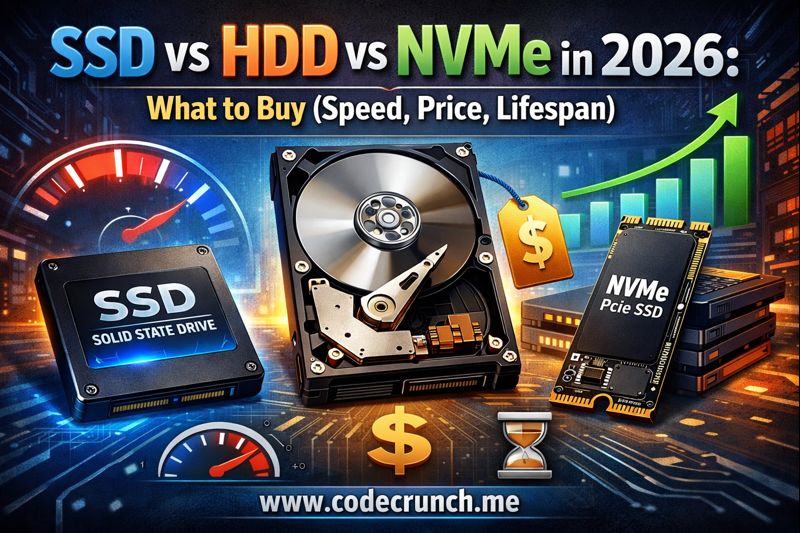
how quickly games load, how smooth creative work feels, and how safe your files are over time.
This guide explains the real differences between HDD, SATA SSD, and NVMe SSD—without marketing noise—and gives you a
step-by-step buying checklist with practical examples.
By the end, you’ll know exactly what to buy for your budget and use case (work, study, gaming, editing, or backup).
TL;DR: What Should You Buy in 2026?
If you want the shortest answer, here it is:
Most peopleBuy an NVMe SSD
- Best for: OS + apps + games + everyday speed
- Why: lowest loading times and best “snappy” feel
- Tip: pick a capacity you won’t outgrow
Budget upgradeBuy a SATA SSD
- Best for: older laptops/PCs with no NVMe slot
- Why: huge upgrade over HDD, often cheaper
- Tip: still feels fast for daily tasks
Bulk storageBuy an HDD
- Best for: large backups, media libraries, archive files
- Why: lowest price per GB for big capacities
- Tip: keep important files backed up (drives fail)
Pro workflowNVMe + HDD combo
- Best for: video editing, photo libraries, game libraries
- Why: speed where you need it + cheap space for everything else
- Tip: store active projects on NVMe, archive on HDD
SSD vs HDD vs NVMe: What the Words Really Mean
One common confusion: NVMe is not a separate “fourth” storage type. NVMe is a way an SSD communicates with your computer.
Think of it like this:
| Term | What it is | How it connects | Best use |
|---|---|---|---|
| HDD (Hard Disk Drive) | Mechanical drive with spinning disks | SATA (usually), sometimes USB (external) | Cheap bulk storage, backups, archives |
| SSD (Solid State Drive) | Flash storage, no moving parts | SATA (2.5″) or NVMe (M.2/PCIe) | Fast OS drive, apps, games, work |
| NVMe | Protocol designed for SSD speed and low latency | PCIe (often M.2 form factor) | Fastest everyday feel, heavy file work, gaming |
Form factor vs speed: don’t mix them up
M.2 is a physical shape (a small “stick” drive). Some M.2 drives are NVMe, but a few are SATA-based.
That’s why listings like “M.2 SSD” can be misleading unless they clearly say NVMe or SATA.
Simple rule: If the listing says “M.2 NVMe PCIe,” it’s the fast type.
If it says “M.2 SATA,” it’s limited to SATA speeds (still fine, just not NVMe-fast).
Speed in Real Life: What Actually Matters (Not Just Big Numbers)
Storage speed is more than a single number. A drive can advertise huge “up to” speeds and still feel average if
its random performance or sustained performance is weak.
The 3 speed metrics that affect your daily experience
- Sequential speed: moving large files (e.g., copying a movie folder).
- Random speed: opening apps, launching games, loading many small files (often the biggest “feel” factor).
- Latency: how quickly the drive responds (lower latency = snappier system).
Typical speed ranges you can expect in 2026
These ranges are intentionally broad because real speed depends on the exact model, capacity, motherboard, and workload.
Use them to understand the category differences—not as a promise for every drive.
| Drive type | Typical sequential reads | Typical real-world “feel” | Best for |
|---|---|---|---|
| HDD | Low (compared to SSDs) | Slower boots, slower app launches, delays when multitasking | Backups, archives, cold storage |
| SATA SSD | Mid (capped by SATA) | Big upgrade over HDD; fast boots and app loads | Budget upgrades, older systems |
| NVMe SSD | High (PCIe-based) | Fastest responsiveness; great for heavy file work and gaming | Modern laptops/PCs, creators, gamers |
Why NVMe “feels” faster even when tasks look similar
Many everyday tasks (like opening a browser) can feel similar on SATA SSD vs NVMe SSD because the bottleneck can shift
to CPU, RAM, or the app itself. But NVMe tends to win when:
- you launch large games with many assets
- you work with large project files (video, photo catalogs)
- you move big files often
- you multitask heavily and the OS constantly reads/writes in the background
NVMe typically has more bandwidth and lower latency than SATA, which helps in heavy workloads.
Price & Value in 2026: Capacity, Cost per GB, and Smart Buying
Storage pricing changes constantly, so instead of chasing exact numbers, focus on a strategy:
buy the capacity you’ll actually use, then choose the fastest interface your device supports.
Capacity planning: the “I won’t regret this later” rule
The most common storage mistake is buying too small and hitting a full drive six months later.
A full drive slows updates, makes file management painful, and forces rushed upgrades.
| Use case | Recommended minimum | Comfortable choice | Why |
|---|---|---|---|
| Office work / study | 512GB SSD | 1TB SSD | Room for apps, updates, documents, and some media |
| Gaming | 1TB SSD | 2TB SSD (or SSD + HDD) | Games are large; libraries grow quickly |
| Photo / video editing | 1TB NVMe | 2TB NVMe + HDD archive | Active projects need speed; archives need space |
| Backup drive | 2TB HDD | 4TB+ HDD (or more) | Backups grow; you want headroom |
Cost-per-GB logic (without getting stuck on price charts)
- HDD usually wins for the cheapest big storage.
- SATA SSD often wins as a value upgrade when NVMe isn’t available.
- NVMe SSD wins for performance per minute saved, especially for gamers and creators.
Best value tip: The “sweet spot” is often a mainstream NVMe drive at 1TB.
Ultra-premium “max speed” models can cost more but don’t always feel dramatically faster for typical users.
Lifespan & Reliability: How Long Do HDD, SATA SSD, and NVMe SSD Last?
“Lifespan” can mean different things:
endurance (how much data you can write) and reliability (likelihood of failure).
In real life, both matter—and backups matter more than the drive type.
SSD endurance basics: TBW, wear leveling, and what it means for you
SSDs store data in flash cells that wear out over time. Manufacturers typically rate endurance using TBW
(terabytes written). That doesn’t mean the drive dies the moment you hit the number; it’s a warranty/expectation metric.
For most everyday users (web, work, study, gaming), reaching the endurance limit usually takes many years.
Heavy workloads (4K/8K editing, continuous recording, large daily exports) write far more data and benefit from higher-endurance models.
HDD reliability: moving parts, vibration, and why backups matter
HDDs have spinning platters and mechanical heads. They can last a long time, but they’re more sensitive to drops,
vibration, and wear. That’s why HDDs are often best for stationary backup setups, not constant travel.
Heat and sustained performance: an NVMe reality check
NVMe drives can run hot under heavy loads. When temperatures rise, some drives slow down temporarily (thermal throttling).
This doesn’t mean NVMe is “bad,” but it does mean:
- good airflow or a heatsink helps in desktops
- laptop chassis design matters
- for huge file transfers, a well-cooled NVMe is noticeably better
Most important reliability rule: Any drive can fail—HDD or SSD.
If the data matters, use a backup strategy (ideally 3-2-1: three copies, two media types, one off-site).
Step-by-Step: How to Choose the Right Drive in 2026 (17 Checks Before You Buy)
Use this exact checklist before you pay. It works for laptop upgrades, gaming PCs, and external drives.
Each step prevents a common mistake (wrong slot, wrong size, poor value, or future regret).
- Identify your device’s supported drive type.
Check whether you have a 2.5″ SATA bay, an M.2 slot (and whether it supports NVMe), or both.
If the listing says only “M.2,” confirm it supports NVMe, not just M.2 SATA. - Choose the correct form factor.
Desktop HDDs are often 3.5″. Laptop HDDs/SSDs are often 2.5″. Many NVMe drives are M.2 (common lengths like 2280). - Pick a capacity based on your real storage habits.
Use the capacity table above. If you keep games, videos, or large project files, size up now. - Decide where speed matters.
OS + apps + active projects should live on SSD (preferably NVMe).
Archive files and backups can live on HDD. - Check performance class—don’t overpay for “peak” speed.
A mainstream NVMe can feel nearly identical to a top-tier model for normal work.
Pay extra only if you do heavy file work every day. - Look for sustained performance behavior.
If you often transfer huge files (100GB+), search for reviews that mention sustained speeds and thermal behavior. - Confirm warranty length and endurance rating (TBW) if available.
You don’t need to obsess over TBW for everyday use, but it’s useful for heavy write workloads. - Avoid unclear listings.
If the listing doesn’t clearly state interface (SATA vs NVMe), capacity, and model, skip it. - Choose reputable sellers and verify return policy.
Storage issues often show up early. A fair return window is your safety net. - Plan your upgrade method: fresh install vs cloning.
Fresh installs can feel cleaner; cloning is faster. Either works if done carefully. - For laptops: confirm space, screws, and access.
Some laptops require specific screws or have limited internal clearance. - For desktops: consider airflow and an NVMe heatsink.
Not always needed, but helpful for sustained workloads. - For external storage: decide between portable SSD and external HDD.
Portable SSD = fast + durable. External HDD = cheapest for big backups. - Protect your data with a backup plan.
Even brand-new drives can fail. Back up before and after the upgrade. - Check compatibility notes in your motherboard/laptop manual.
Some M.2 slots share lanes or disable certain ports when used. - Use SMART/health monitoring after installation.
Keep an eye on health indicators and temperatures. - Leave free space (don’t run the drive at 99%).
SSDs perform best with breathing room. Keeping 10–20% free space helps maintenance and updates.
One reliable external reference: If you want a simple definition of NVMe and why it exists,
the official NVM Express organization explains the standard here:
NVM Express (NVMe) official site.
(Only one external link is included to keep this guide clean.)
What to Buy in 2026: Best Choice by Scenario
Let’s turn the theory into buying decisions. Use the table below and pick the line that matches your situation.
| Your scenario | Best choice | Why it’s the best fit | Common mistake |
|---|---|---|---|
| Older laptop with a hard drive | SATA SSD (2.5″) | Transforms speed and responsiveness without needing NVMe support | Buying NVMe when the laptop only supports SATA |
| Modern laptop / new PC build | NVMe SSD (M.2) | Best balance of speed and future-proofing | Choosing tiny capacity to save a little money |
| Gaming PC with large library | 1–2TB NVMe + optional HDD archive | Fast loads + room for installs and updates | Filling the SSD completely and losing performance |
| Creator (photo/video) | NVMe for active projects + large HDD for archive | Speed for editing + low-cost storage for raw footage | Editing directly from a slow external HDD |
| Backup drive for family files | Large HDD (external or internal) | Lowest cost per GB for backups | Keeping only one copy (no redundancy) |
| Portable travel drive | External portable SSD | No moving parts; better shock resistance | Traveling with an HDD and dropping it |
A simple “best for most people” recommendation
If your device supports it, an NVMe SSD is the best all-around buy in 2026.
Choose 1TB if you can—it’s often the capacity where pricing and practicality meet.
If you’re upgrading an older machine, a SATA SSD can still feel like a brand-new computer.
Upgrade Tips: Install, Clone, Cooling, and Settings
Buying the right drive is only half the job. A clean installation and smart setup can protect your data
and help you get the speed you paid for.
Before you start: a short safety checklist
- Back up important data to an external drive or cloud storage.
- Confirm your screws/tools (small screwdriver, adapter if needed).
- Download essential drivers if your system needs them for Wi-Fi/storage.
Cloning vs fresh install: which is better?
Cloning (copy old drive to new)
- Fast and convenient
- Keeps apps and settings
- Best if your old system is stable and clean
Fresh install (install OS again)
- Cleanest long-term feel
- Removes old clutter
- Best if your old system is slow or messy
NVMe heat: when you should care
If you mostly browse, study, and game casually, you may never notice NVMe heat.
If you regularly write huge files (video exports, project caches), a heatsink or good airflow can keep performance steady.
Installing an M.2 SSD is usually simple: insert, press down, and screw in—always power off first.
Simple habits that help SSD performance and longevity
- Leave free space: keeping 10–20% free helps performance and system updates.
- Avoid constant unnecessary writes: don’t use the SSD as a “scratch disk” for endless temporary files unless needed.
- Keep firmware and OS updated when updates are stable and recommended.
- Use backup automation so a drive failure is an inconvenience, not a disaster.
Conclusion: What to Buy (and How to Decide) in 2026
In 2026, the best storage choice is usually simple:
NVMe SSD for speed, SATA SSD for budget upgrades, and HDD for cheap bulk space.
The key is matching the drive to your device and your habits—then buying enough capacity so you won’t outgrow it quickly.
To implement this confidently, follow these steps:
- Confirm what your laptop/PC supports (SATA, M.2 SATA, or M.2 NVMe).
- Pick capacity based on your real use (512GB minimum for many, 1TB+ for gaming/creator work).
- Choose SSD (NVMe if possible) for OS/apps and keep HDD for backups/archives.
- Check warranty/returns, then plan cloning or a fresh install.
- Back up your data and keep free space on the drive for best performance.
Bottom line: If you’re unsure, choose a mainstream NVMe SSD in a comfortable capacity.
It’s the easiest “buy once, enjoy daily” upgrade you can make.
FAQ: SSD vs HDD vs NVMe in 2026
1) Is NVMe worth it over a SATA SSD for everyday use?
Often yes—especially if the price difference is small and your device supports NVMe.
Many daily tasks feel fast on both, but NVMe tends to win in heavy multitasking, large file work, and modern game loading.
If your budget is tight, a SATA SSD is still a massive upgrade over an HDD.
2) Will an SSD last longer than an HDD?
They fail in different ways. HDDs have moving parts and can be sensitive to drops and vibration.
SSDs have flash wear limits (endurance ratings like TBW), but for typical home use they often last many years.
The safest plan is a reliable backup strategy regardless of drive type.
3) What capacity should I buy in 2026?
For many users, 512GB is the minimum comfortable size. 1TB is a great “no regrets” choice,
especially if you install games or store lots of media. Creators often benefit from 2TB or an NVMe+HDD combo.
4) Is an HDD still good for anything in 2026?
Absolutely. HDDs remain excellent for cheap, large backups and archives—especially when you need multiple terabytes.
They’re just not ideal as a primary OS drive if you care about speed and responsiveness.
5) Are all M.2 drives NVMe?
No. M.2 is a form factor. Some M.2 drives are NVMe (fast, PCIe-based) and some are M.2 SATA (limited to SATA speeds).
Always confirm the listing says “NVMe” if that’s what you want.
6) Do NVMe SSDs need heatsinks?
Not always. Many users never need one. But for sustained heavy workloads (large file transfers, long exports),
a heatsink or good airflow can help maintain performance and keep temperatures stable.
7) What’s the best storage setup for a gaming PC?
A common high-value setup is 1–2TB NVMe SSD for OS and games, plus an optional HDD for backups and older titles.
This gives fast loading without paying premium SSD prices for every terabyte.