
If HTML provides the structural skeleton of a webpage, Cascading Style Sheets (CSS) provides its aesthetic design, responsive layouts, typography, and visual brand identity. But before you can style a button, align a navigation bar, or configure dark mode, you must master CSS selectors.
CSS selectors are the targeting mechanisms browsers use to bind styling rules to specific HTML elements. In this comprehensive beginner guide, we break down every core selector type, combinators, pseudo-classes, attribute selectors, and the mathematical rules of CSS specificity that every frontend developer must understand.
Table of Contents
- 1. What Is a CSS Selector? Rule Anatomy Explained
- 2. The Foundation Selectors: Element, Class, and ID
- 3. CSS Combinators: Direct Child, Descendant, and Siblings
- 4. Pseudo-Classes: Styling User Interactions and Structure
- 5. Pseudo-Elements: Generating Content with ::before and ::after
- 6. Attribute Selectors: Targeting Elements by State
- 7. Demystifying CSS Specificity (The 4-Column Rule)
- 8. Quick Reference Selector Cheat Sheet
- 9. Common Mistakes and Performance Best Practices
- 10. Frequently Asked Questions (FAQ)

1. What Is a CSS Selector? Rule Anatomy Explained
A CSS selector is a pattern matching rule that tells the browser engine which HTML elements to find in the Document Object Model (DOM) and apply styling rules to.
Every CSS ruleset consists of two components: the selector and the declaration block:
/* Selector */
.callout-card {
  /* Declarations: property: value; */
  background-color: #f8fafc;
  border-left: 4px solid #2563eb;
  padding: 20px;
}
If you need to brush up on HTML elements like <p>, <section>, or <article>, read our beginner primer on HTML tags explained for beginners.
2. The Foundation Selectors: Element, Class, and ID
1. Universal Selector (*)
The asterisk matches every single element on the page. In professional codebases, it is primarily used in CSS resets to establish consistent box sizing:
* {
  box-sizing: border-box;
  margin: 0;
  padding: 0;
}
2. Element (Type) Selector
Targets all HTML elements of a specific tag name:
h1 {
  font-size: 2.25rem;
  color: #0f172a;
}
3. Class Selector (.classname)
Classes are reusable styling hooks applied via the HTML class attribute. In CSS, class selectors start with a dot (.):
.btn-primary {
  background-color: #2563eb;
  color: #ffffff;
  padding: 10px 20px;
  border-radius: 6px;
}
Because multiple elements can share the same class, classes are the foundation of scalable design systems.
4. ID Selector (#idname)
Targets a single unique element carrying an HTML id attribute. In CSS, IDs begin with a hash (#):
#site-header {
  position: sticky;
  top: 0;
  background-color: #ffffff;
}3. CSS Combinators: Direct Child, Descendant, and Siblings
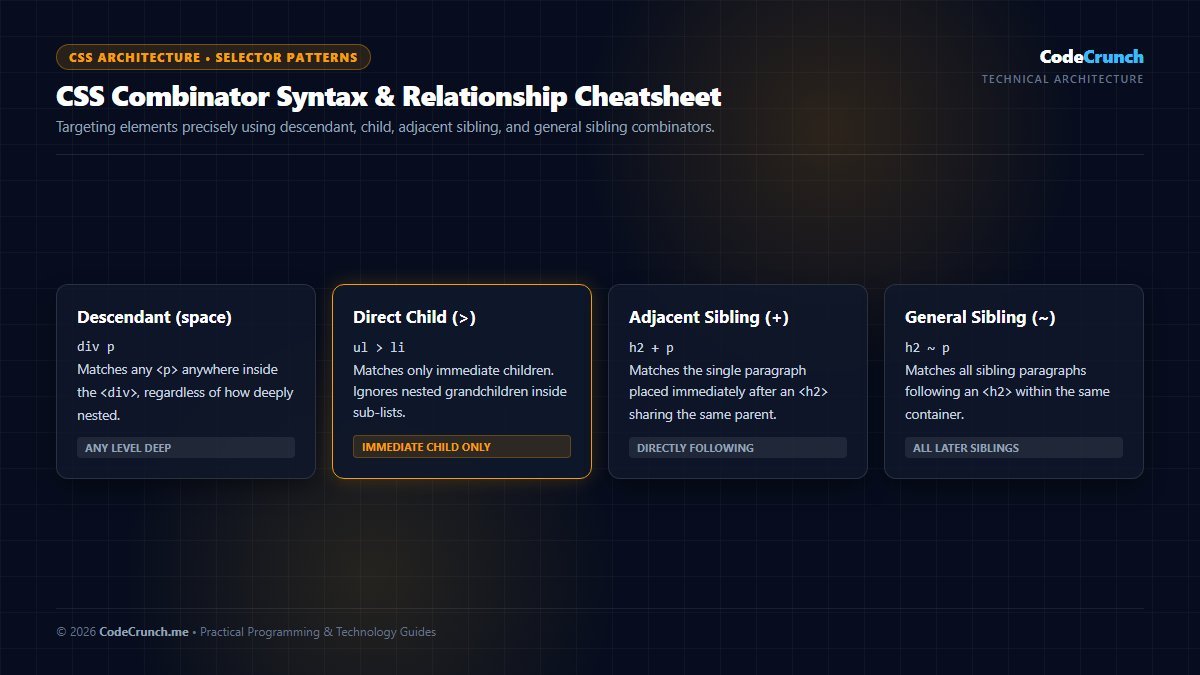
Relationship Syntax: As shown above, combinators describe the precise DOM relationship between selectors. Using the direct child combinator (>) prevents style leaks into nested submenus, while sibling combinators (+ and ~) enable interactive state styling without JavaScript.
Combinators define the relational hierarchy between multiple selectors:
1. Descendant Combinator (Space)
Matches any matching element nested inside the ancestor, regardless of depth:
/* Targets all <p> tags inside <article>, even if inside a <div> */
article p {
  line-height: 1.75;
}
2. Child Combinator (>)
Matches only elements that are immediate, direct children of the parent:
/* Targets only first-level <li> inside the primary nav */
.nav-menu > li {
  display: inline-block;
}
3. Adjacent Sibling Combinator (+)
Matches an element that immediately follows another element at the same hierarchy level:
/* Adds margin only to the first paragraph directly following an H2 */
h2 + p {
  margin-top: 8px;
  font-size: 1.15rem;
}
4. General Sibling Combinator (~)
Matches all subsequent sibling elements sharing the same parent, regardless of distance:
/* Targets all sibling paragraphs after an image */
img ~ p {
  color: #475569;
}
4. Pseudo-Classes: Styling User Interactions and Structure
Pseudo-classes (prefixed with a single colon :) style elements based on their state or position in the document:
User Interaction Pseudo-Classes
:hover— Applies when the user hovers a mouse pointer over the element.:focus-visible— Highlights interactive elements when focused via keyboard navigation (crucial for accessibility).:active— Triggers during the moment an element is clicked or tapped.
Structural & Filter Pseudo-Classes
:first-child/:last-child— Targets the first or last sibling.:nth-child(even)&:nth-child(odd)— Styles alternating table rows or list items for clean zebra-striping.:not(.disabled)— Excludes specific elements matching the negated selector.
/* Interactive button with accessible keyboard focus */
.btn {
  background-color: #2563eb;
  transition: background-color 0.2s ease;
}

.btn:hover {
  background-color: #1d4ed8;
}

.btn:focus-visible {
  outline: 3px solid #93c5fd;
  outline-offset: 2px;
}
5. Pseudo-Elements: Generating Content with ::before and ::after
While pseudo-classes style existing elements, pseudo-elements (prefixed with two colons ::) allow you to style specific sub-parts of an element or inject decorative visual elements without adding extra HTML tags:
::before&::after— Injects cosmetic content before or after an element’s child content (requires thecontent: "";property).::placeholder— Styles input field helper text.::selection— Changes the highlight color when users select text on your page.
/* Decorative quote mark on blockquotes */
blockquote::before {
  content: "“";
  font-size: 3rem;
  color: #94a3b8;
  line-height: 0;
  vertical-align: -0.4em;
}
6. Attribute Selectors: Targeting Elements by State
Attribute selectors target elements based on the presence, exact match, or substring match of their HTML attributes:
[type="email"]— Targets only input fields intended for email addresses.[target="_blank"]— Styles external links opening in a new tab.[href^="https"]— Matches links whose URL starts with “https”.[href$=".pdf"]— Injects a PDF download icon for links ending in “.pdf”.
7. Demystifying CSS Specificity (The 4-Column Rule)
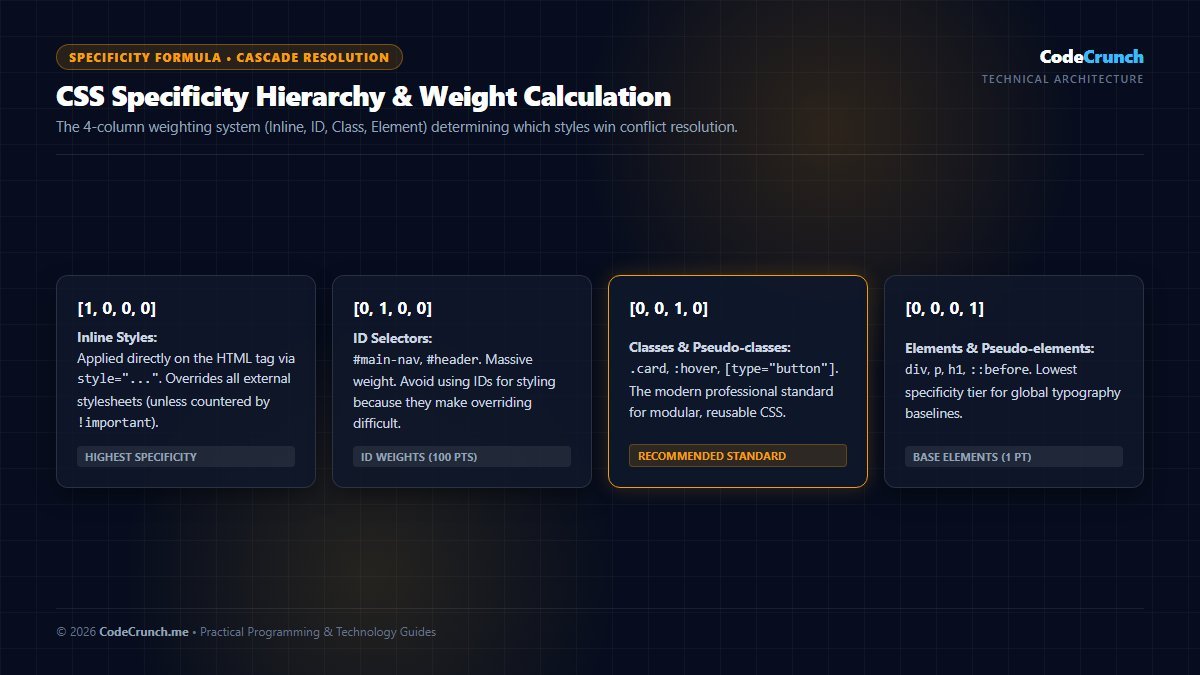
Specificity Weight Calculation: CSS specificity is calculated as a 4-part numeric tuple: Inline styles (1,0,0,0), ID selectors (0,1,0,0), Classes and pseudo-classes (0,0,1,0), and Elements (0,0,0,1). Specificity never “rolls over” into a higher column, which is why a single ID will override 100 stacked classes.
Modern CSS Selectors: Mastering :is(), :where(), and :has()
Modern CSS specifications have introduced powerful relational and pseudo-class selectors that simplify complex stylesheets and eliminate unnecessary CSS classes:
:where()(Zero Specificity): Matches any selector in its list, but always has a specificity score of(0,0,0,0). This makes it ideal for CSS reset stylesheets and base component defaults that can be easily overridden without resorting to!important.:where(h1, h2, h3) { margin-block-start: 1.5em; line-height: 1.25; }:is()(Highest Specificity in List): Groups selectors to reduce duplication, taking the specificity of its most specific argument./* Matches all headers inside articles, sections, and asides */ :is(article, section, aside) :is(h1, h2) { color: #1e293b; }:has()(The CSS Parent Selector): Allows styling an ancestor element based on its descendants or states. For example, styling a card differently if it contains an image:/* Style card container only if it contains an image */ .card:has(img) { grid-template-rows: 200px 1fr; }
For complete selector grammar and specifications, consult the W3C CSS Selectors Level 4 Specification and MDN CSS Selectors Guide.
When multiple conflicting CSS rules target the same element, browsers calculate specificity to decide which declaration wins. Specificity is calculated as a four-value tuple: (Inline, ID, Class, Element):
| Selector Example | Inline Styles | IDs | Classes / Attributes | Elements | Specificity Score |
|---|---|---|---|---|---|
style="..." | 1 | 0 | 0 | 0 | 1, 0, 0, 0 |
#hero-banner | 0 | 1 | 0 | 0 | 0, 1, 0, 0 |
.card.featured | 0 | 0 | 2 | 0 | 0, 0, 2, 0 |
header nav ul li a | 0 | 0 | 0 | 5 | 0, 0, 0, 5 |
0, 0, 1, 0) beats a hundred chained element tags (0, 0, 0, 100). Avoid using !important to resolve specificity disputes—instead, keep your selectors shallow and modular.8. Quick Reference Selector Cheat Sheet
| Pattern | Meaning | Example |
|---|---|---|
.card | Elements with class=”card” | .card { border-radius: 8px; } |
div.card | Only <div> elements with class=”card” | div.card { padding: 16px; } |
.card > h3 | Immediate <h3> children of .card | .card > h3 { font-size: 1.25rem; } |
a:hover | Links currently being hovered | a:hover { text-decoration: underline; } |
input:focus | Active text inputs with focus | input:focus { border-color: #2563eb; } |
9. Common Mistakes and Performance Best Practices
- Overly Deep Nesting: Writing
body #wrapper main .content .post article pforces the browser engine to evaluate multiple ancestors right-to-left. Keep selectors under three levels. - Overusing !important: Treating
!importantas a quick fix creates a vicious specificity war that makes subsequent stylesheets unmaintainable. - Neglecting Accessibility States: Styling
:hoverwithout matching:focus-visibleleaves keyboard and screen reader users stranded.
Put your selector skills to work immediately in our hands-on tutorial on how to build a simple website using HTML and CSS, and explore the complete career journey in our roadmap on frontend developer skills for beginners in 2026. For comprehensive reference documentation, visit the official MDN Web Docs CSS Selectors Guide.
10. Frequently Asked Questions (FAQ)
What is the difference between a class and an ID in CSS?
Classes (prefixed with .) can be reused across hundreds of elements on the same page. IDs (prefixed with #) must be strictly unique to a single element per HTML page. Classes are preferred for general styling.
Why do browsers read CSS selectors right-to-left?
Browsers evaluate selectors from right to left (starting from the key selector) to quickly eliminate non-matching DOM nodes without having to traverse down entire tree branches.
Can I combine multiple classes on a single element?
Yes. In HTML you write class="btn btn-primary btn-large". In CSS you can target elements that have both classes simultaneously by chaining them without spaces: .btn.btn-primary.