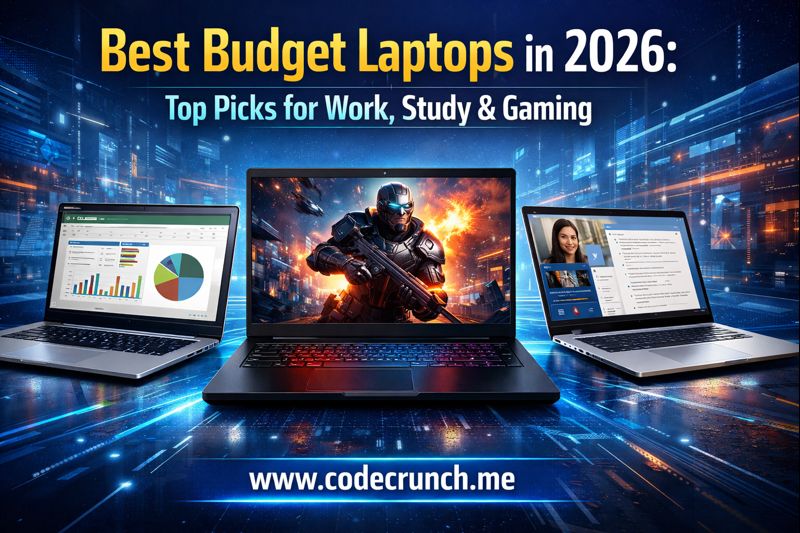
This guide gives you a clear shortlist of “safe picks,” a simple step-by-step buying process, and a practical checklist
so you can confidently choose a laptop that feels fast, lasts, and fits your work, classes, or games.
Quick Picks: Best Budget Laptops in 2026 (Work, Study & Gaming)
“Best” depends on your use case. Instead of one winner, here are practical categories that match how people actually shop:
you choose the category, then look for the recommended configuration.
Important: Prices and exact configurations change every week. Treat these as “model families” and
aim for the specs listed under each pick. If you find a newer refresh with the same (or better) specs at the same price,
that’s usually a win.
| Pick (Model Family) | Best for | Target Price Range | What to look for (configuration) | Why it works |
|---|---|---|---|---|
| Acer Aspire Go / Aspire 5-class | Everyday work, browsing, light creative tasks | $350–$650 | At least 16GB RAM, 512GB SSD, 1080p IPS display | Reliable “all-rounder” category with good value when on sale |
| Dell Inspiron (value configs) | Office work, Zoom, writing, spreadsheets | $450–$750 | Modern i5/Ryzen 5-class CPU, 16GB RAM, good port selection | Often offers strong keyboards and solid service options |
| Lenovo IdeaPad Slim / Flex (Windows) | Students + portability, general productivity | $350–$750 | 14–15.6″, 16GB RAM preferred, 300+ nits if possible | Great “sweet spot” for everyday speed and comfort |
| Chromebook Plus (Lenovo Flex 5i / similar) | Study, web apps, docs, long battery life | $250–$500 | 8GB RAM minimum, 128GB storage, 1080p webcam preferred | Fast for web-based workflows, low maintenance, usually great value |
| Lenovo LOQ 15-class | Budget gaming + school/work on the same laptop | $650–$1,000 | Dedicated GPU (RTX/RTX-class), 16GB RAM, 512GB+ SSD | Strong entry-level gaming performance when discounted |
| Acer Nitro V 15-class | Cheapest “real gaming laptop” experience | $600–$950 | Dedicated GPU, 144Hz display, upgradeable storage if possible | Great sales are common; ideal for esports and 1080p gaming |
| 2-in-1 budget convertibles (Flex/Spin-class) | Notes, reading, sketching, presentations | $400–$800 | Touchscreen, solid hinge, stylus support if needed | Versatile for class + travel; best if you truly use tablet mode |
Want a faster decision? Jump to the Specs Checklist and match your use case to the recommended row.
Budget Tiers in 2026: What “Budget” Really Means
In 2026, “budget laptop” can mean anything from a $250 Chromebook to a $1,000 gaming machine on a deep sale.
The trick is knowing what each tier can realistically deliver—so you don’t overpay or expect miracles.
Tier 1$250–$400
Best for: web browsing, Google Docs, YouTube, email, light schoolwork.
Prefer Chromebooks here unless you’re certain you need Windows apps.
- Expect: basic performance, good battery life
- Avoid: 4GB RAM if possible, tiny 64GB storage on Windows
Tier 2$400–$700
Best for: office work, study, multitasking, light photo editing, and casual gaming.
This is the “value sweet spot” for most people.
- Look for: 16GB RAM + 512GB SSD
- Bonus: brighter screens (300 nits+), better keyboards
Tier 3$700–$1,000
Best for: budget gaming, heavier multitasking, creative apps, and “buy once, keep longer.”
Sales matter a lot here.
- Look for: dedicated GPU for gaming, strong cooling
- Upgrade-friendly: extra SSD slot or accessible RAM (if supported)
Refurb / Open-boxSave 15–35%
Best for: getting a higher tier laptop for the same money—if you buy from trusted sellers with returns.
- Must-have: clear grading + warranty + easy returns
- Check: battery health and charger included
If your goal is “fast for years,” prioritize RAM and storage before chasing a fancy CPU name.
For many buyers, 16GB RAM + 512GB SSD is the difference between “smooth” and “constantly closing tabs.”
Specs Checklist for a Budget Laptop in 2026 (Minimum vs Recommended)
This table is your shopping filter. Use it to compare listings quickly without getting lost in marketing.
The “Recommended” column is where most buyers should aim for long-term comfort.
| Component | Minimum (Only if price is unbeatable) | Recommended (Best value) | Ideal (If you keep laptops 4–6 years) |
|---|---|---|---|
| CPU | Modern entry-level i3/Ryzen 3-class | i5/Ryzen 5-class or efficient midrange chips | Higher-tier i5/i7 or Ryzen 5/7-class with efficient performance |
| RAM | 8GB (Chromebook ok; Windows can feel tight) | 16GB | 16–32GB (especially for creative apps) |
| Storage | 256GB SSD | 512GB SSD | 1TB SSD or 512GB + easy upgrade |
| Display | 1080p, acceptable brightness | 1080p IPS, 300 nits+ if you work in bright rooms | Higher brightness + better color (great for media & design) |
| Battery | 6–8 hours real-world | 8–12 hours real-world | 10–14 hours real-world (excellent portability) |
| Webcam | 720p | 1080p preferred | 1080p + good mics + privacy shutter |
| Ports | USB-A + headphone jack | USB-A, USB-C, HDMI (or USB-C display out) | USB-C charging + display + full port set |
| Gaming GPU | Integrated graphics only (casual games) | Dedicated GPU for modern 1080p gaming | Dedicated GPU + strong cooling + higher refresh display |
Windows note: If you’re shopping for a Windows laptop, make sure it meets current Windows 11 requirements.
Microsoft lists minimums like 4GB RAM and 64GB storage, but for comfort in 2026, aim much higher than the minimum.
See Microsoft’s official requirements here:
Windows 11 specifications.
How to Choose a Budget Laptop in 2026 (9 Numbered Steps)
Use this exact process when you’re comparing listings. It prevents impulse buys and helps you avoid the most common budget-laptop regrets.
- Define your “must-run” apps.
If you need specific Windows-only software (engineering tools, some pro editing apps), that instantly narrows your choices.
If your work is mostly browser-based, a Chromebook can be the best-value option. - Pick your screen size: 14″ for portability, 15.6″ for comfort.
Students and commuters usually prefer 14″. Home/desk users often love 15.6″ for multitasking. - Choose your performance target (everyday vs heavy).
Everyday: documents, email, web, light editing. Heavy: large spreadsheets, coding, video editing, gaming. - Set your baseline specs.
For most people: 16GB RAM + 512GB SSD. If a listing doesn’t meet this, the discount must be big. - Check the screen quality (not just resolution).
“1080p” is not enough—look for IPS and decent brightness if you work in daylight or bright rooms. - Inspect the port list.
If you present slides or connect monitors, ensure HDMI or USB-C display support. Don’t assume. - Look for upgrade paths (when possible).
Some budget laptops allow SSD upgrades; a few allow RAM upgrades. Upgrades can extend laptop life. - Read the return policy and warranty.
Budget models can vary in quality. A good return window is your safety net. - Buy the best deal—not the fanciest name.
A “midrange” laptop with 16GB RAM often beats a “higher-tier” CPU paired with 8GB RAM.
Quick shortcut: if a laptop meets the Recommended specs and has the ports you need,
it’s usually a safe buy when priced in the right tier.
Best Budget Laptops for Work in 2026
Work laptops need consistency: stable performance, comfortable typing, solid webcam/mics, and enough RAM for multitasking.
If you spend hours in docs, email, and meetings, prioritize these “quality of life” features.
Work Laptop Priorities (the 80/20)
- Keyboard + touchpad: you feel this every day. If reviews say the keyboard is “mushy,” skip it.
- 16GB RAM: makes browser tabs and video calls smoother.
- 512GB SSD: avoids constant storage cleanup and supports faster updates.
- 1080p webcam + decent mics: better meeting quality without extra gear.
- Ports: USB-C plus at least one USB-A is ideal for real life.
Recommended Work Picks (Model Families)
These categories tend to offer strong value with the right configuration:
- Dell Inspiron value configs: great for office apps, long writing sessions, and presentations.
- Lenovo IdeaPad Slim-class: often strong keyboards, good student/work balance.
- Acer Aspire Go / Aspire 5-class: dependable everyday performance when you choose the right RAM/SSD.
Example “good listing” for work:
14–15.6″ 1080p IPS • i5/Ryzen 5-class • 16GB RAM • 512GB SSD • USB-C + HDMI • 1080p webcam (or good mics)
Work Setup Tip: One Budget Upgrade That Feels Premium
If you work at a desk, spend a small amount on a basic USB-C hub or dock (with HDMI and USB-A ports).
It reduces cable frustration and makes a budget laptop feel like a workstation.
Best Budget Laptops for Students in 2026
Student laptops are about portability and reliability: you want something light enough to carry, with battery life that survives a day of lectures,
and strong enough to handle research, PDFs, video calls, and a million browser tabs.
Student Laptop Shortlist (by scenario)
Best value for web-based study: Chromebook Plus
- Great for Google Docs, Slides, online classes, research
- Lower maintenance (fewer slowdowns over time)
- Look for 8GB RAM minimum
Best if you need Windows apps: IdeaPad Slim / Aspire-class
- Choose 16GB RAM if you multitask
- Prefer 14″ for commuting
- Pick 512GB SSD if you store lots of files
Why 2-in-1 Laptops Can Be Worth It (and when they aren’t)
A budget 2-in-1 can be amazing for reading, highlighting PDFs, and taking handwritten notes—if you actually use tablet mode.
If you never fold the screen back, you’re paying extra for a feature you don’t use.
Student Checklist (quick)
- Weight you can carry daily (aim for comfort over “biggest screen”)
- 8+ hours real battery life (more is better)
- Durable hinge + solid build (especially for backpacks)
- Enough ports for presentations or lab gear
- Warranty/returns (important for budget devices)
Internal navigation tip: If you want a simple “shopping filter,” jump back to the Specs Checklist.
Best Budget Laptops for Gaming in 2026
Budget gaming laptops are the most “high-risk, high-reward” category: the right deal feels incredible,
but the wrong one runs hot, loud, and disappoints. The key is choosing the right performance class for your games.
For budget gaming, prioritize cooling, a decent screen, and 16GB RAM—spec sheets don’t show thermal limits.
Pick the Gaming Level You Actually Need
| Gaming goal | What to buy | What you can expect | Common mistakes to avoid |
|---|---|---|---|
| Esports & light games | Integrated graphics + 16GB RAM | Great for lighter titles, school/work too | Buying 8GB RAM and wondering why it stutters |
| Modern 1080p gaming (budget) | Dedicated GPU + 16GB RAM + good cooling | Solid 1080p playability with tuned settings | Choosing the cheapest GPU but ignoring thermals/screen quality |
| “One laptop for everything” | Stronger midrange GPU, 512GB–1TB SSD | Better longevity for new games and creative work | Paying extra but getting a dim display or small SSD |
Two Model Families That Often Win on Value
- Lenovo LOQ 15-class: frequently discounted and built for entry-level gaming with decent keyboards.
- Acer Nitro V 15-class: a common “lowest price” gateway to real 1080p gaming with high-refresh screens.
Gaming configuration that usually makes sense:
- Dedicated GPU
- 16GB RAM (upgrade to 32GB later if you stream/edit)
- 512GB SSD minimum (games are huge—storage fills fast)
- 1080p 144Hz+ display if you play competitive titles
Practical Gaming Tips (so a budget laptop feels better)
- Update GPU drivers and Windows before judging performance.
- Use “balanced” settings and turn down shadows/reflections first (you’ll gain frames with minimal visual loss).
- Keep airflow clear: don’t block vents on a bed/blanket; use a hard surface.
- Consider a larger SSD if you install multiple big games.
How to Save Money on a Budget Laptop in 2026 (Without Buying Junk)
The fastest way to get a “premium-feeling” laptop on a budget is to shop smart, not just cheap.
Use these strategies to increase value without sacrificing reliability.
Money-Saving Moves That Actually Work
- Shop sales windows: holiday deals, back-to-school promos, and end-of-quarter clearances often cut prices sharply.
- Choose last-year refresh: a slightly older model with 16GB/512GB often beats a new model with weak specs.
- Consider certified refurb/open-box: only from sellers with warranty + easy returns.
- Prioritize upgrades that matter: more SSD storage (and sometimes RAM) extends usable life.
- Don’t pay extra for useless features: ultra-high resolution on a budget panel, or “gaming” branding without a dedicated GPU.
Red Flags to Avoid (Budget Laptop Traps)
- Windows laptops with 4GB RAM: may meet minimum requirements but feel slow under real multitasking.
- eMMC storage on Windows: often slower and smaller than an SSD.
- Dim screens: painful if you study/work near windows or in bright rooms.
- Non-upgradeable tiny storage: 128GB fills quickly with updates and apps.
Conclusion: The Simple Plan to Buy the Right Budget Laptop in 2026
The best budget laptop in 2026 isn’t the one with the flashiest label—it’s the one that matches your tasks and avoids bottlenecks.
If you remember nothing else, remember this:
- Start with your apps and your screen size.
- Aim for 16GB RAM + 512GB SSD for smooth daily use.
- Check the screen quality and ports before you click “buy.”
- For gaming, prioritize a dedicated GPU, cooling, and storage—then tune settings.
- Use returns/warranty as your safety net, especially on budget models.
Implementation tip: When you find a laptop you like, compare it against the
Specs Checklist and the 9-step process.
If it passes both, it’s almost always a good decision.
FAQ: Best Budget Laptops in 2026
1) What is the best budget laptop for students in 2026?
If your workload is mostly web-based (Docs, Slides, research, online classes), a Chromebook Plus category laptop is often the best value.
If you need Windows-only apps, choose a 14–15.6″ Windows laptop with 16GB RAM and a 512GB SSD.
2) Is 8GB RAM enough in 2026?
For Chromebooks and light use, 8GB can be fine. For Windows laptops, 8GB is the minimum and can feel tight with many tabs,
video calls, and multitasking. If you want a smoother experience, 16GB is the best upgrade.
3) What specs matter most for a budget laptop?
RAM and storage usually matter more than small CPU differences. For most people: 16GB RAM + 512GB SSD + a decent 1080p IPS display
delivers the best real-world experience.
4) Are budget gaming laptops worth it in 2026?
Yes—if you buy the right deal. Look for a dedicated GPU, 16GB RAM, strong cooling, and enough SSD space.
Budget gaming laptops can run modern games well at 1080p with tuned settings, but battery life is usually limited while gaming.
5) Chromebook vs Windows: which is better on a budget?
Chromebooks usually offer better value for web-based tasks and are easier to maintain.
Windows is better when you need specific desktop apps or broader software compatibility.
Choose based on what you must run—not what sounds more “powerful.”
6) How long should a budget laptop last?
A well-chosen budget laptop can last 4–6 years for everyday work and study.
Picking 16GB RAM and a 512GB SSD improves the odds you’ll still feel comfortable using it later.
7) Should I buy refurbished to save money?
Refurbished can be a great deal if you buy from a trusted seller with warranty and easy returns.
Avoid unknown sellers with unclear grading, missing accessories, or limited return windows.
8) What’s the easiest way to avoid a “slow” budget laptop?
Avoid Windows laptops with very low RAM and tiny storage. Use the Specs Checklist,
and prioritize 16GB RAM and SSD storage over marketing features.